> For the complete documentation index, see [llms.txt](https://docs.crobox.com/llms.txt). Markdown versions of documentation pages are available by appending `.md` to page URLs; this page is available as [Markdown](https://docs.crobox.com/how-to-guides/product-finders/create-activations.md).
# Create Activations
In this article, you will find information on how to place your Product Finder on your website to allow your users to interact with it.
Once your Product Finder is ready, you need to decide how users will open it on your site.
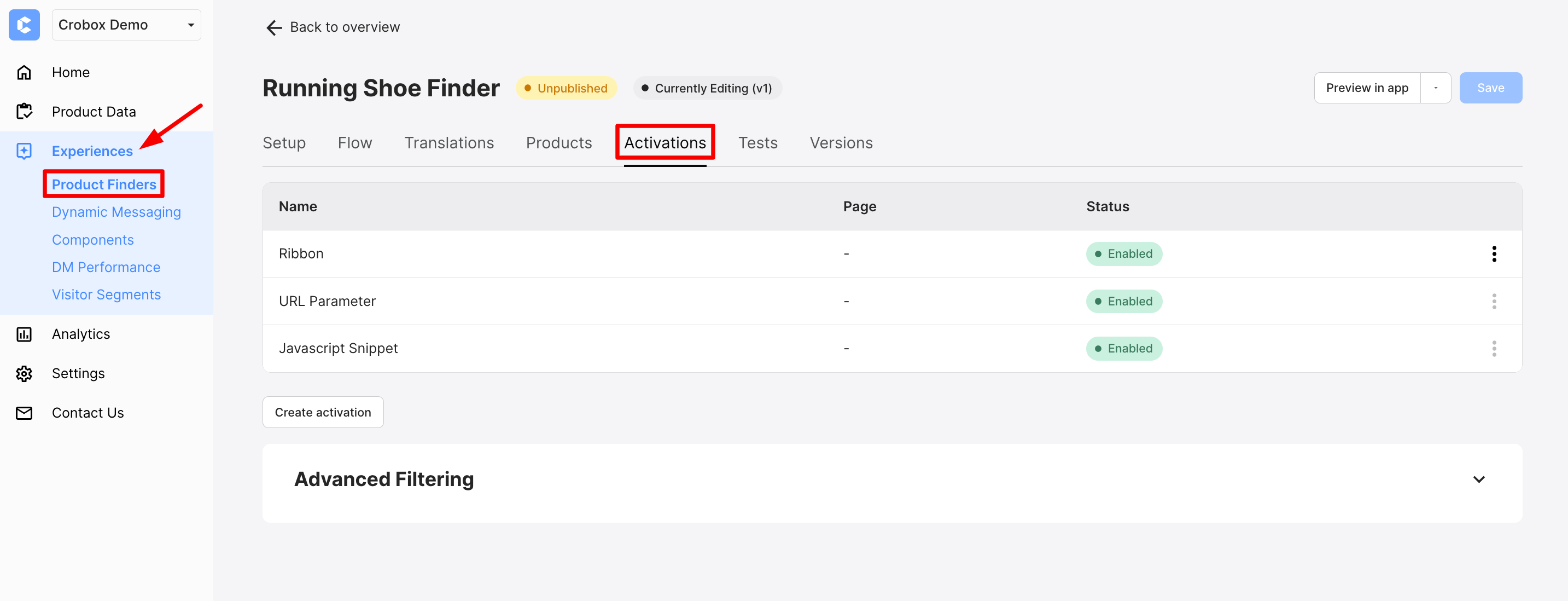
Go to your Product Finder and open the **Activations** tab.
## Activations Tab
### Quick pick (which activation should I use?)
* Use **JavaScript Snippet** when you want a button or banner to open the Finder on the same page.
* Use **URL Parameter** when you want a shareable link (email, ads, QR, etc).
* Use **Activation Ribbon** when you want a persistent entry point across targeted pages.
* Use **In-line Rendering** when you want a dedicated Finder page embedded in your layout.
For inspiration on where to place entry points, check [Activations: Best Practices](/how-to-guides/product-finders/activations-best-practices.md).
### Before you start
* The **Crobox snippet** must be installed on every page where users can open the Finder.
* The page must be included by **Advanced Filtering**. See [Advanced Filtering](#advanced-filtering).
{% hint style="info" %}
You can apply filters to all activation types via [Advanced Filtering](#advanced-filtering).
{% endhint %}
## URL Parameter
Use a URL parameter when you want a direct link that opens the Finder by default.
Add the query parameter to the end of any URL on your website. When a user loads that URL, the Finder opens automatically.
#### How to get the parameter
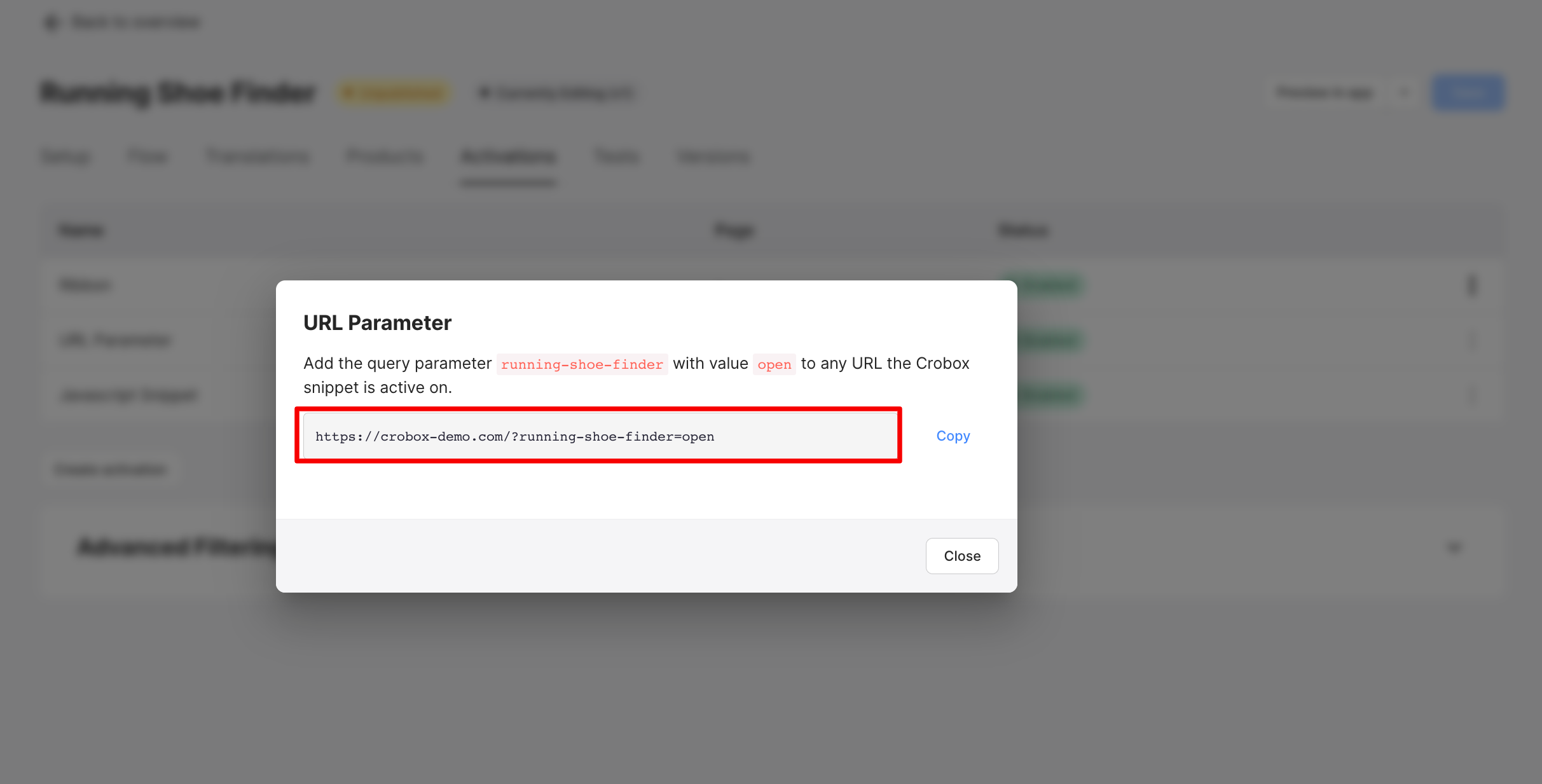
In the Activations tab, click **URL Parameter**. A pop-up opens with the unique parameter for this Product Finder.
Example: **?running-shoe-finder=open**
#### Prerequisites
* The Crobox snippet is installed on the page.
* The page is included by [Advanced Filtering](#advanced-filtering).
#### Suggested Use Case
* Use this when you drive traffic from outside your site.\
Example: marketing email, paid ad, social post, QR code.
{% hint style="info" %}
Avoid URL parameters for internal navigation. Use a **JavaScript Snippet** instead to open the Finder without redirects.
{% endhint %}
## JavaScript Snippet
Use a JavaScript snippet when you want an on-page trigger (CTA, banner, link) that opens the Finder immediately.
This avoids redirects. Users can open the Finder on a PLP or PDP.
#### How to get the snippet
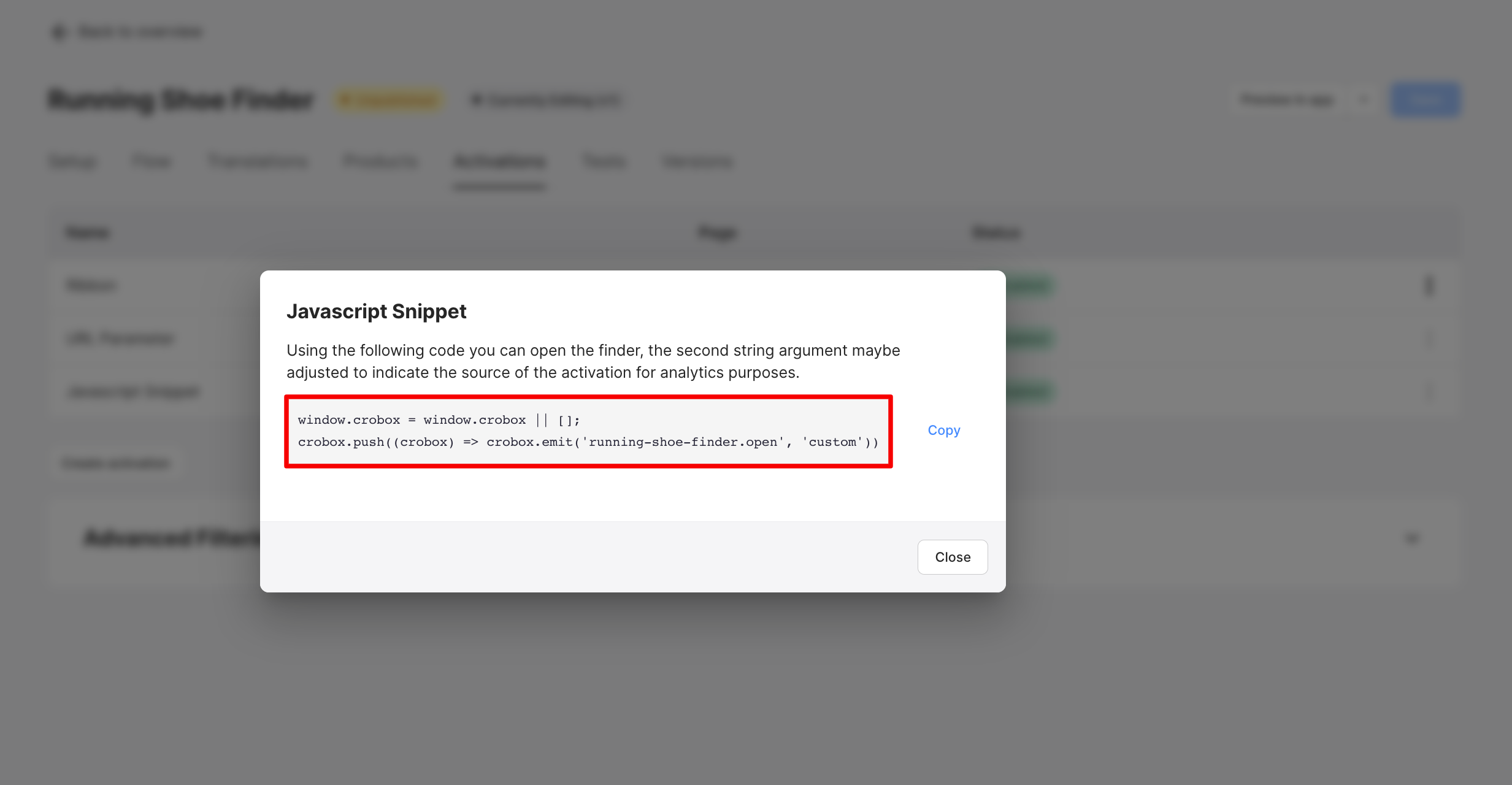
In the Activations tab, click **Javascript Snippet**. A pop-up opens with the unique snippet for this Product Finder.
Implement that snippet in the element that should open the Finder.
#### Prerequisites
* The Crobox snippet is installed on the page.
* The page is included by [Advanced Filtering](#advanced-filtering).
#### Suggested Use Case
* Use this for banners, buttons, and other on-page elements.\
Example: “Find your perfect product” CTA on PLP or PDP.
## Activation Ribbon
The Activation Ribbon is a persistent tab on the right side of the page. Users can open the Finder without leaving the current page.
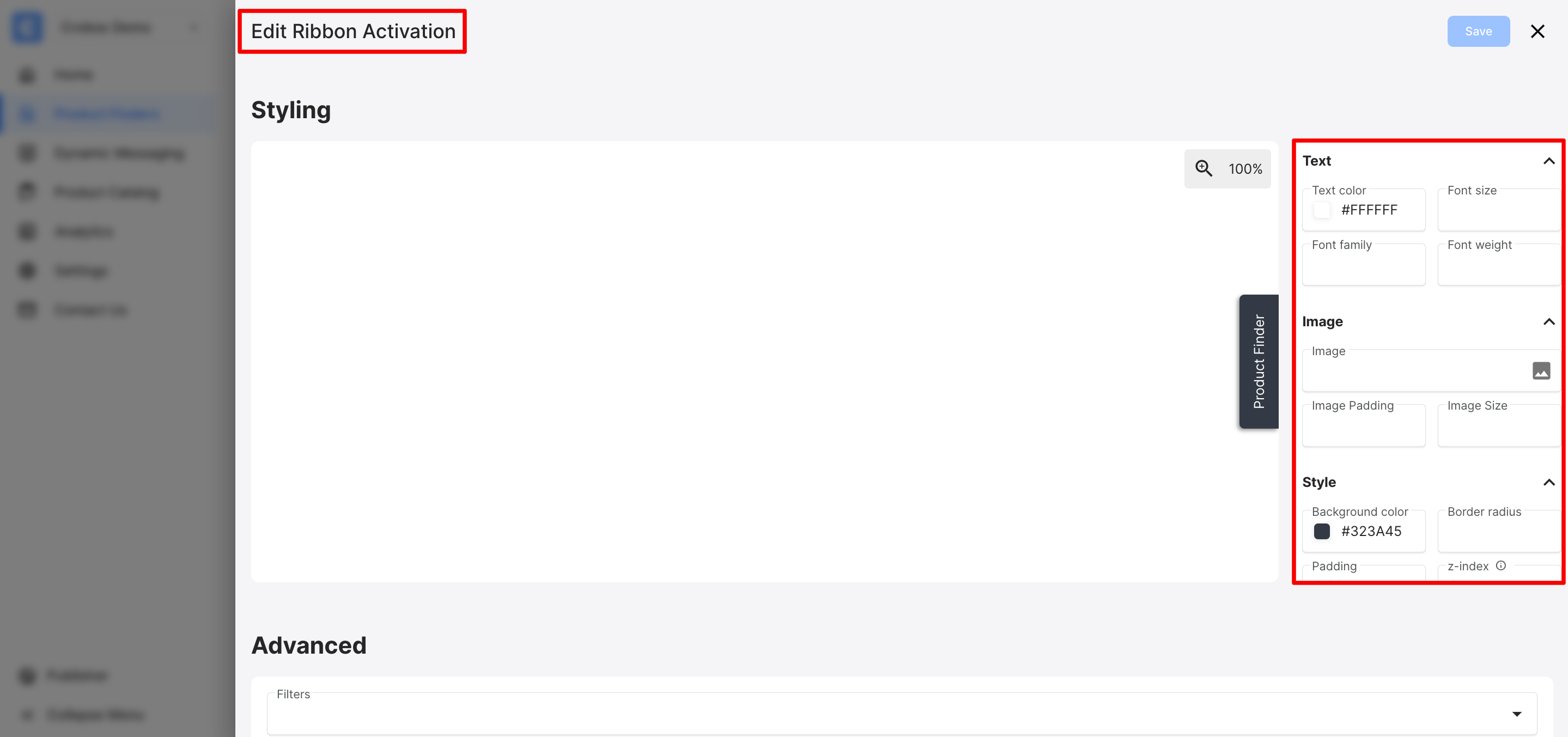
To configure it, click **Ribbon** in the Activations tab. This opens the Ribbon editor.
#### Ribbon setup checklist
{% stepper %}
{% step %}
### Configure the look
Set the text, icon, and styling.
{% endstep %}
{% step %}
### Configure where it shows
Set **Ribbon Advanced Filters** to target the right pages.
{% endstep %}
{% endstepper %}
#### Customization options
#### Ribbon Text
* Text Color (hex code)
* Font Size (rem or px, default is 14px)
* Font Family
* Font weight
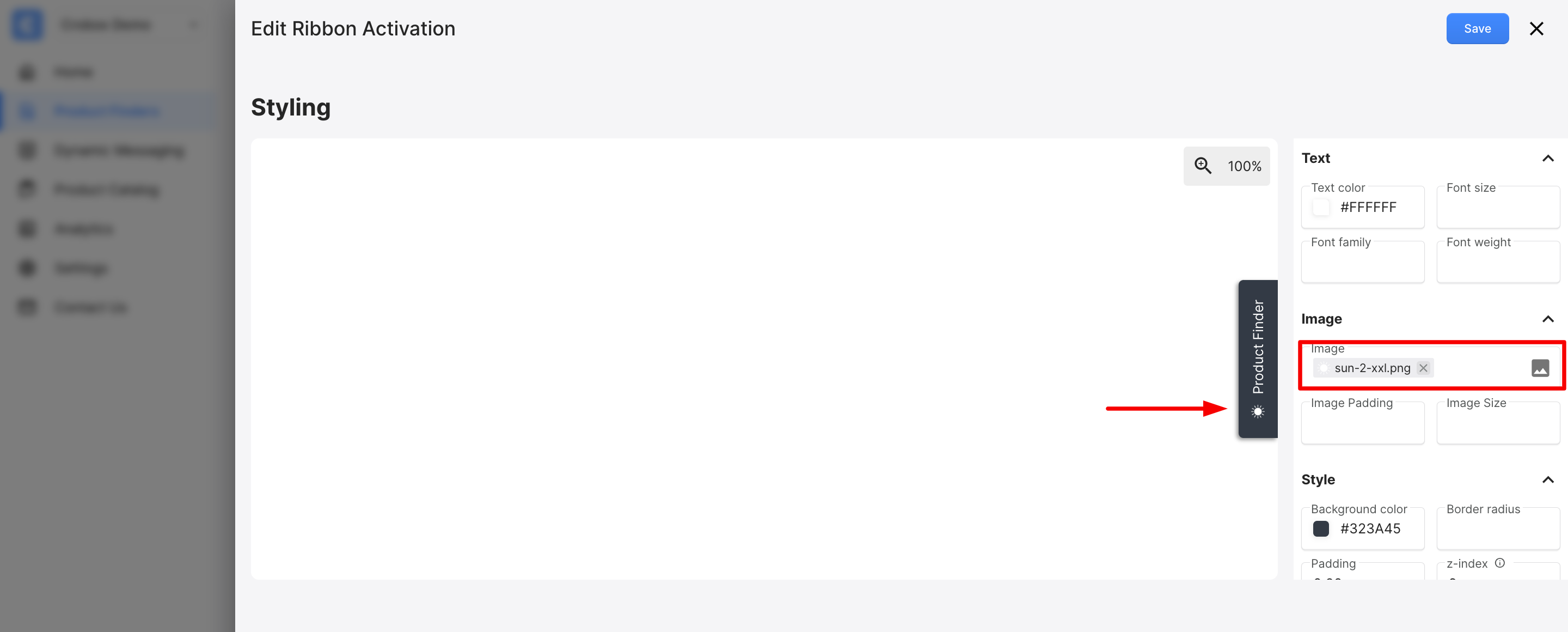
#### Ribbon Image
You can add an icon within the tab/ribbon, which will show before the text, as shown in the screenshot below.
* Image: Upload a .svg (recommended) or .png
* Image Padding: Select how much space will be around the icon.
* Image Size: Select the size the icon will be displayed in (the value can be in px, rem, or % size of the image).
#### Ribbon Style
* Background color: Select the color of the tab (hex code).
* Border radius: How rounded the tab is (default value is 5px).
* Padding: This affects the spacing around the text and image.
* Z-index: Controls layering vs other elements on your site
#### Ribbon Animations
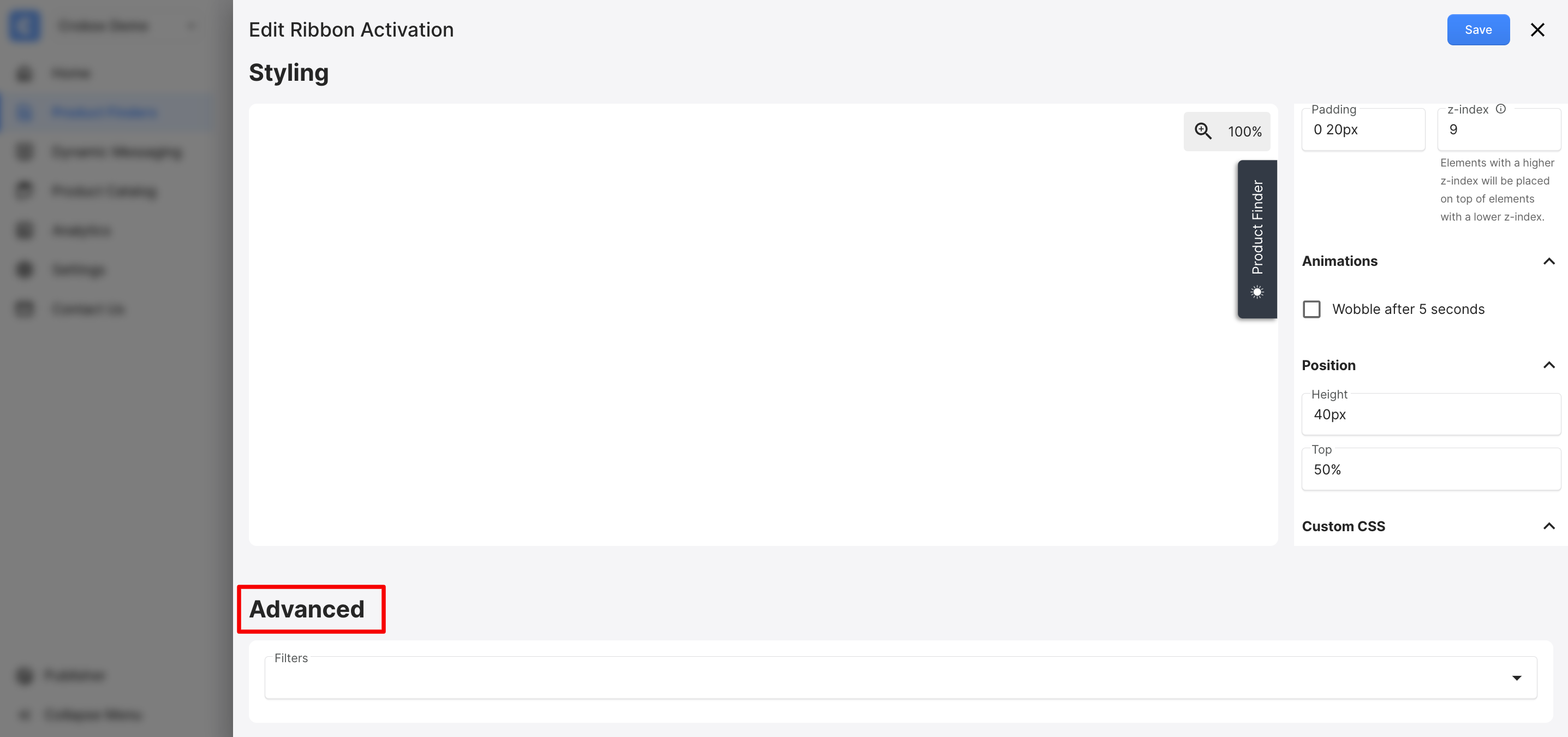
* Wobble after 5 seconds: Draw attention after a short delay
#### Ribbon Position:
* Height: How tall the tab is (default value is 40px)
* Top: Vertical position. Example: 20% means 20% from the top (default value is 50%).
#### Auto-hide
Auto-hide keeps the ribbon accessible without obstructing page content. It hides the ribbon while users scroll down and shows it again when they scroll up.
* **Auto-hide on scroll:** Enable or disable this behavior.
* **Hide on:** Choose **Always**, **Below breakpoint**, or **Above breakpoint**.
* **Breakpoint (px):** Set the screen width used by the **Below breakpoint** and **Above breakpoint** options.
* **Scroll threshold (px):** Set how far users must scroll before the ribbon hides or reappears.
#### Custom CSS
Add CSS snippets to customize the ribbon further. These CSS snippets only affect the ribbon.
#### Translations:
Translate the ribbon text into different languages.
#### Ribbon Advanced Filters
This is where you determine where the ribbon should show on your site (which pages, countries, etc).
* These filters operate the same way as the Advanced Filters for all activations (see the [Advanced Filtering section](#advanced-filtering) of this article).
* Keep in mind that adding any filters in this section will only affect the ribbon. However, any other filters you add in Advanced Filtering will also apply.
## In-line Rendering / Landing Page
Use In-line Rendering when you want to embed your Product Finder directly into a dedicated page on your website. Unlike modal-based activations, in-line rendering makes the Finder part of your page layout (ideal for creating a seamless, immersive discovery experience).
#### What you need on your site
Your development team needs to prepare the target page:
* Create a dedicated page for your Product Finder (e.g., `/product-finder` or `/find-your-product`)
* Add a placement element with a unique **CSS selector** that Crobox can target
* Ensure the Crobox snippet is installed on the page
{% hint style="info" %}
Use a unique ID selector when possible (e.g., `#product-finder-placement`) rather than a class. This ensures Crobox targets exactly one element on your page.
{% endhint %}
#### Setup in Crobox
{% stepper %}
{% step %}
### Create the activation
* Navigate to your Product Finder and open the **Activations** tab.
* Click **Create activation** → **In-line Rendering**.
{% endstep %}
{% step %}
### Configure the target element
* In the **Target** section, you'll specify where and how Crobox renders the Product Finder on your page.
* **CSS Selector Target:** Enter the CSS selector for your placement element.
| Selector Type | Format | Example |
| ----------------- | ---------------- | --------------------------- |
| ID Selector | `#element-id` | `#product-finder-placement` |
| Class Selector | `.class-name` | `.finder-container` |
| Combined Selector | `#parent .child` | `#maincontent .main` |
* **CSS Selector Mode:** Choose how Crobox positions the Product Finder relative to your target element:
| Mode | Description | Use Case |
| ----------------------------- | ------------------------------------------------------------------ | -------------------------------------------------------------------- |
| Append Within Parent Element | Inserts the Finder as the last child inside your target element | Default choice, works with most layouts |
| Prepend Within Parent Element | Inserts the Finder as the first child inside your target element | When you need the Finder above existing content within the container |
| After Parent Element | Places the Finder immediately after (outside) your target element | When your container has constraints that prevent internal placement |
| Before Parent Element | Places the Finder immediately before (outside) your target element | When you need the Finder above the target container |
| {% endstep %} | | |
{% step %}
### Configure styling
The **Style** section controls the dimensions and appearance of the Product Finder container.
* **Height:** The height of the Finder container. Use `auto` to let content determine height, or specify a fixed value (e.g., `600px`).
* **Min Height:** The minimum height the container will maintain, regardless of content. Prevents layout shifts during loading.
* **Max Width:** The maximum width of the Finder container. Use `100%` for full-width layouts or a fixed value (e.g., `1200px`) for centered designs.
* **Enable dynamic height:** Toggle this option **on** to allow the Finder container to automatically adjust its height as users navigate through questions. This creates a smoother experience by preventing unnecessary scrolling or empty space. When disabled, the container maintains its initial height throughout the experience.
* **Background color (optional):** Set a background color for the area behind the Finder. This is visible when Max Width is smaller than the viewport width, creating margins on either side. In most cases the field will be left empty.
{% endstep %}
{% step %}
### In-line Rendering Advanced Filters
This is where you determine the page(s) where this in-line activation should show.
* These filters operate the same way as the Advanced Filters for all activations (see the [Advanced Filtering section](#advanced-filtering) of this article).
* Keep in mind that adding any filters in this section will only affect the In-line Rendering. However, any other filters you add in Advanced Filtering will also apply.
* Even when using a unique CSS selector target, we still recommend targeting only the URL.
{% endstep %}
{% endstepper %}
{% hint style="warning" %}
Exclude the in-line page from your ribbon targeting. If both show on the same page, they can interact and cause unexpected behavior.
{% endhint %}
## Advanced Filtering
Under **Create activation**, you will see **Advanced Filtering**. These filters apply to all activation types.
If a page is excluded here, **URL Parameter** and **JavaScript Snippet** will not work on that page.
You can include or exclude pages using:
* Page Type
* Country
* Language
* Page URL
{% hint style="info" %}
You can also set up a **Conditional** filter. This requires extractors on your site. Contact your Customer Success Manager if you want to use this.
{% endhint %}
---
# Agent Instructions
This documentation is published with GitBook. GitBook is the documentation platform designed so that both humans and AI agents can read, navigate, and reason over technical content effectively. Learn more at gitbook.com.
## Querying This Documentation
If you need additional information that is not directly available in this page, you can query the documentation by asking a question.
Perform an HTTP GET request on the following URL with the `ask` and `goal` query parameters:
```
GET https://docs.crobox.com/how-to-guides/product-finders/create-activations.md?ask=&goal=
```
`ask` is the immediate question: it should be specific, self-contained, and written in natural language.
`goal` is what the user is ultimately trying to achieve, the reason they need the answer. Sharing it helps GitBook give you a better, more relevant answer. A goal is most helpful when it describes the outcome the user wants rather than restating the question. For example, with `ask=how do I create an API token`, a goal like `automate deployments from our CI pipeline` lets GitBook tailor the answer to that use case.
The response will contain a direct answer to the question and relevant excerpts and sources from the documentation.
Use this mechanism when the answer is not explicitly present in the current page, you need clarification or additional context, or you want to retrieve related documentation sections.