> For the complete documentation index, see [llms.txt](https://docs.crobox.com/llms.txt). Markdown versions of documentation pages are available by appending `.md` to page URLs; this page is available as [Markdown](https://docs.crobox.com/how-to-guides/product-data/product-tags.md).
# Product Tags
In this article we will go over creating a Product Tag, which can be used to target a subset of products in a Campaign.
## Introduction
Product Tags are a useful tool for targeting a specific subset of products that are not all associated with a specific Product Property in your Product Feed. For example, if you want to set up a seasonal campaign for a Valentine's Day promotion, you can create a Valentine's Day promotion tag and include all the relevant products inside it.
## How to Create a Product Tag
To create a Product Tag, follow these steps:
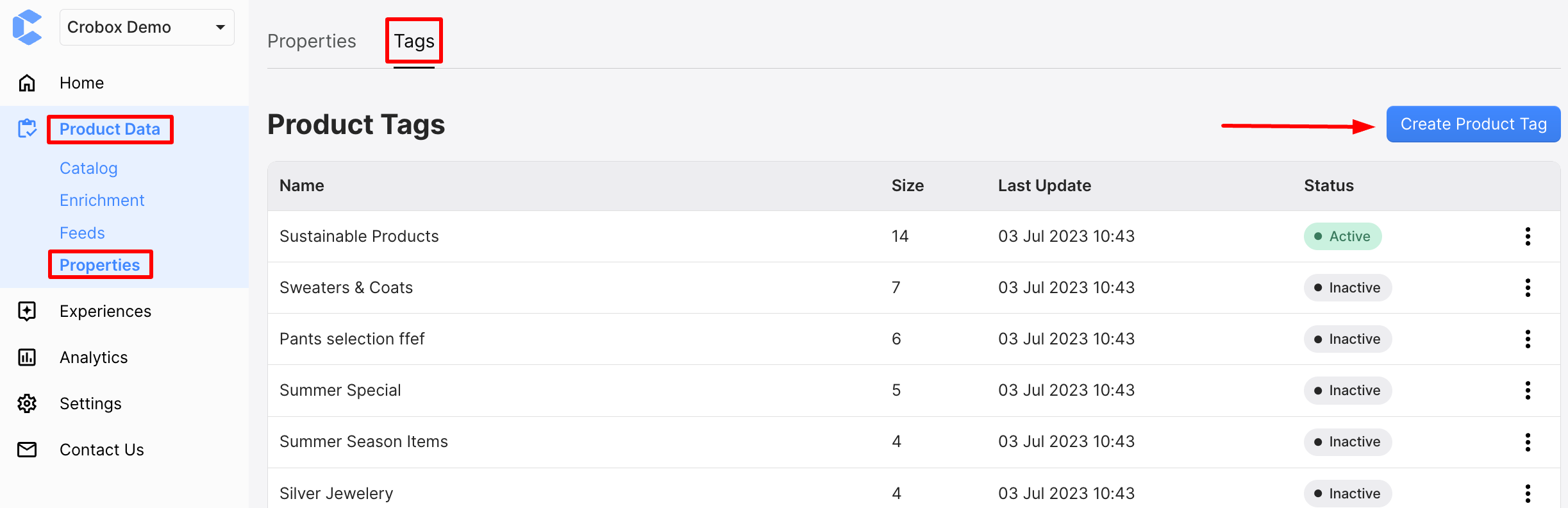
1. Navigate to Product Data > Properties, then select the **Tags** tab.
2. Click on the **Create Product Tag** button.
3. Add a title to the Product Tag, as seen in the screenshot below.
4. In the Product Tag side panel, you can add products to your tag in two ways:
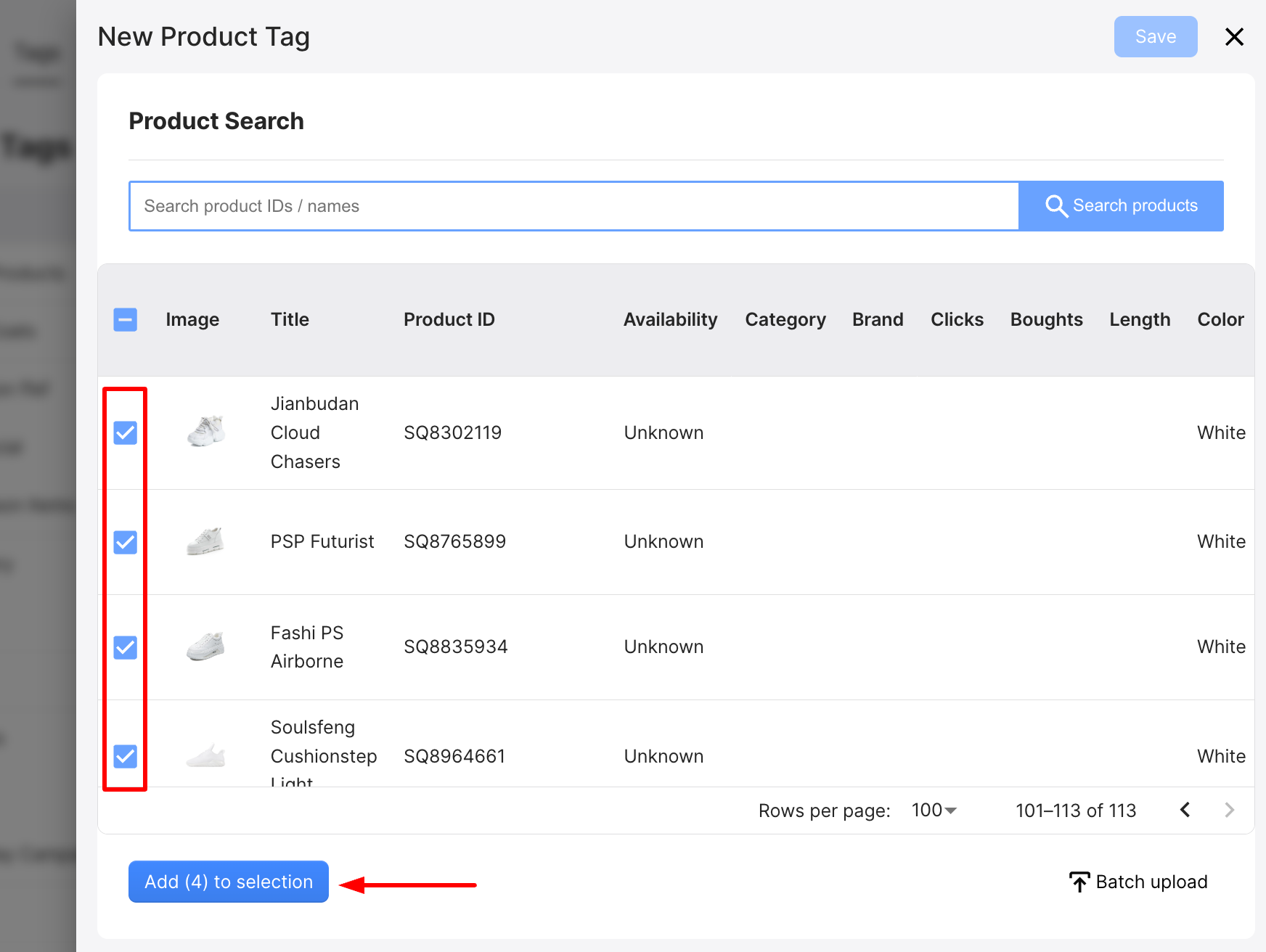
a) Search for Product IDs/Titles and add them to the new tag (useful for small product tags that contain only a few products):
* Select the desired product tags one by one by clicking on the checkbox next to each item.
* Click on the **Add to selection** button.
b) Batch Upload a list of Product IDs (useful for tags that will contain a large number of products)
* Click on the **Batch upload** button at the right bottom side of the side panel.
* Type or paste your Product IDs in the text panel that appears with **one Product ID per row**.
* Click on **Upload IDs**.
5. Once all your products are added, click on **Save** at the top right of the side panel.
{% hint style="info" %}
There is no limit on how many product IDs can be batch uploaded at the same time. However, please keep in mind that a batch upload consisting of several thousand product IDs might take some time to be completed.
{% endhint %}
## How to Edit Product Tag (Add or Remove Products)
Once your Product Tag is created, you can add more products by following the same steps as above.
In order to remove products from a Tag, follow these steps:
1. Open the Product Tag you want to edit by clicking on it.
2. Scroll down to the bottom of the side panel (underneath the Tag Name section).
3. Select the products you want to remove using the checkboxes.
4. Click on the **Remove from selection** button.
Once you have removed your products of choice click on the **Save** button.
{% hint style="info" %}
To use a Product Tag in a Campaign, search for Product Tag when you are adding a condition to your campaign's targeting.
{% endhint %}
---
# Agent Instructions
This documentation is published with GitBook. GitBook is the documentation platform designed so that both humans and AI agents can read, navigate, and reason over technical content effectively. Learn more at gitbook.com.
## Querying This Documentation
If you need additional information that is not directly available in this page, you can query the documentation by asking a question.
Perform an HTTP GET request on the following URL with the `ask` and `goal` query parameters:
```
GET https://docs.crobox.com/how-to-guides/product-data/product-tags.md?ask=&goal=
```
`ask` is the immediate question: it should be specific, self-contained, and written in natural language.
`goal` is what the user is ultimately trying to achieve, the reason they need the answer. Sharing it helps GitBook give you a better, more relevant answer. A goal is most helpful when it describes the outcome the user wants rather than restating the question. For example, with `ask=how do I create an API token`, a goal like `automate deployments from our CI pipeline` lets GitBook tailor the answer to that use case.
The response will contain a direct answer to the question and relevant excerpts and sources from the documentation.
Use this mechanism when the answer is not explicitly present in the current page, you need clarification or additional context, or you want to retrieve related documentation sections.